Update ·

BankCleaner 1.0.3 Update

Update

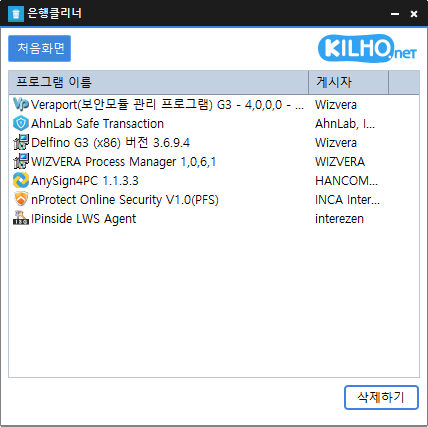
  • Added a list of selected Windows apps with an option to remove them for the current user
  • Fixed unexpected exits while loading the program list in some environments
  • Fixed list rows appearing partially clipped while scrolling
  • Added automatic restarts after graphics errors in some environments
  • Easily remove security (?) programs that you have no choice but to install.
  • Enjoy the convenience of using it without installation, from a single file.

History

  • Version 1.0.2 (2026/10/03)
    • Reduced unexpected program exits on affected systems
  • Version 1.0.1 (2026/10/01)
    • Rebuilt BankCleaner in Rust from the original Delphi version for better stability
    • Improved the bank security program list and fixed screen shifting when selecting an item
    • Removed unnecessary details that appeared when hovering over a list item
    • Fixed unexpected program exits immediately after launch on affected systems
    • Improved loading speed for startup/unwanted program lists
    • Reduced screen freezes when refreshing lists
  • Version 0.9.1 (2024/11/18)
    • Added data sharing with KCleaner
    • Rewrote the entire codebase
  • Version 0.9.0 (2017/07/04)
    • Initial release

License

  • BankCleaner is freeware.
  • Use it freely in any setting, including businesses, homes, government offices, and schools.
  • You may freely distribute it anywhere.

Download

Frequently Asked Questions (FAQ)

  • Is BankCleaner free?
    Yes, BankCleaner is free to use at home, at work, in government offices, schools, and elsewhere.
  • Can it remove security programs from all banks?
    We have confirmed that it removes programs installed by major banks, including KB Kookmin Bank, IBK, Woori Bank, and NH Nonghyup Bank.
  • Is it safe to delete programs?
    BankCleaner only launches the uninstallers provided by each security program.
  • Does it need to be installed?
    No, you can run it immediately after downloading, without any installation.

Examples

  • Remove unnecessary security programs left behind after online banking to speed up your PC.
  • Safely stop bank-related programs that launch automatically when they are not needed, freeing up computer resources.
  • Clean up your PC regularly to keep it running smoothly even after online banking.

Tips

  • Click or drag unwanted items in the program list to remove them all at once.
  • Using BankCleaner regularly prevents processes from lingering after online banking and keeps your system clean.
  • Run it right after banking to remove unnecessary programs immediately, which can also help protect your personal information and security.

Related Links

Leave a Reply

Your email address will not be published. Required fields are marked *