
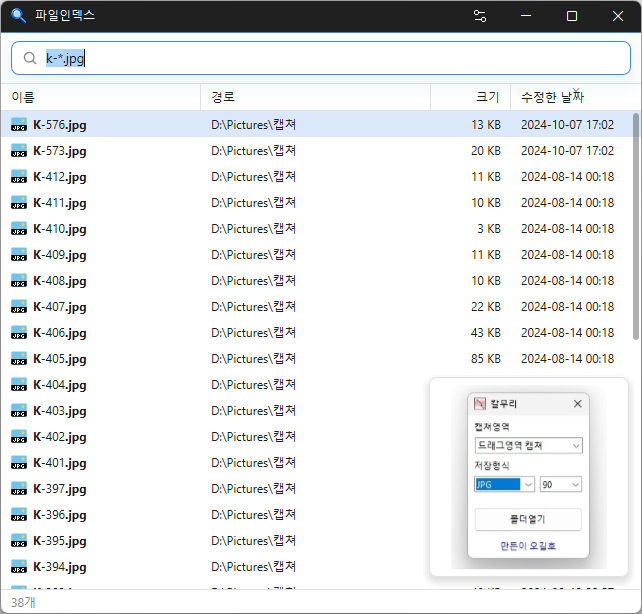
Where did I save that file?
Sometimes you know you downloaded a file, but can’t remember which folder you put it in. Opening folders one by one or waiting for File Explorer to finish searching can take a lot of time.
FileIndex finds files across all the drives on your PC, even if you enter only part of a name. Results update as you type, so just open the file as soon as you see it.
I used Everything for a long time, but it seemed wasteful to have it constantly using memory just to search a few times a day. So I made a search program that’s fast when you need it and stays quiet the rest of the time.
When you close the window, it hides in the system tray and releases the memory it was using after a short while. While hidden, it uses very little memory, and when you bring it back, it finds files in under 0.5 seconds most of the time.
Find files as you type
When you first run it, FileIndex builds a list of files on your drives. After that, it tracks files being created, deleted, or renamed in real time. Even files you just downloaded show up in search right away, and the default sort order is by most recently modified, so recent files appear at the top.
Open, copy, and drag and drop found files just like in File Explorer, or use the right-click menu. Select a photo, video, or PDF to see a thumbnail preview.
Korean initial-consonant search and search filters
For Korean names, you can search by entering only the initial consonants. Enter just ㄱㅇㅅ, for example, and you’ll get “계약서” (contract). Separate multiple words with spaces to show only names that contain all of them.
You can combine filters for extension (ext:pdf), size (size:>1gb), wildcards (*.txt), and regular expressions (regex:), so you can search for something like “videos over 500 MB” in a single line.
Find duplicate files
It groups together files with the same name, files of the same size, and even files with identical contents. Combine it with other filters, like dupe:content ext:jpg, to find and remove duplicate photos or videos.
When it comes in handy
- When you can’t remember where you saved a file
- When your disk is full and you need to clear out large or duplicate files
- When you want to search files on USB drives or external disks all at once
When you close the window, it stays in the system tray, ready to open again at any time. Both an installer and a portable version that only needs to be extracted are available.
Website
- FileIndex: https://kilho.net/fileindex
Download
 Download
(Windows)
History
-
Version 0.9.2 (2026/10/23)
- Fixed preview tasks that could stall or remain open on some systems
- Changed the right-click menu to the app menu and added a setting to use the Explorer menu
- Added direct file renaming in the results list
- Excluded Recycle Bin items from search results
- Added a global shortcut to open the window and F2 to rename files
- Added document previews for HWP, HWPX, DOC, DOCX, XLS, XLSX, PPT, and PPTX files
-
Version 0.9.1 (2026/10/22)
- Added a resizable preview pane beside search results
- Added document and text previews
- Added keyboard navigation for preview text
- Added drive capacity and free space details, with drive selection for searches
- Added Open Path and Copy Full Path to the right-click menu
- Kept other drives searchable while a new drive is indexed, with progress shown in the status bar
- Reduced full-drive reindexing when restarting the app or after changes accumulate
-
Version 0.9.0 (2026/10/17)
- First Release
License
- FileIndex is freeware.
- You can use it freely at work, at home, in government offices, at school, and anywhere else.
- You are free to distribute it anywhere.
Frequently Asked Questions (FAQ)
- Is it free?
Yes. FileIndex is freeware and can be used for free at work, at home, or at school. - Does it show ads?
No. You can use it without ads. - Can I use it without installing it?
Yes. Download the portable version, extract it, and run FileIndex.exe. Both versions have the same features. - Can it search using Korean initial consonants?
Yes. Enter just the consonants, like ㄱㅇㅅ, and it will find names whose initial consonants match in order, such as “계약서” (contract). - Can it search for files I just created?
Yes. New, deleted, and renamed files are reflected in search results right away. - Can it find files on USB drives?
Yes. When you plug one in, it indexes the drive automatically within a few seconds and includes its files in the results.
Related Links
- Update information: https://blog.kilho.net/archives/notice/2940
와우~ 저도 에브리띵 오랜사용자인데 한번 사용해볼게요 감사합니다.